


 How to use Adaptive Cruise Control
If your vehicle has this available feature, Adaptive Cruise Control allows you to set a cruise control speed and automatically follow a detected vehicle ahead at a driver-selected following gap. If no vehicle is detected in your path, the feature works like regular cruise control. You can always override the feature and take control.
How Adaptive Cruise Control works
- Adaptive Cruise Control is a different kind of cruise control. In addition to keeping your vehicle at a set speed, it’s designed to help keep a set distance between you and the vehicle in front of you.
a. That distance is called the “following gap.” - On some vehicles, Adaptive Cruise Control uses your vehicle’s forward-looking camera and radar sensors to detect vehicles directly ahead of you. That’s how it can speed up and slow down your vehicle to maintain the following gap you select.
- On other vehicles, Adaptive Cruise Control will use either just the camera or just a radar to detect vehicles ahead.
- The feature will work the same either way. The only thing that changes is what sensors you might have to clean in case they get dirty.
How to turn Adaptive Cruise Control on (most vehicles)
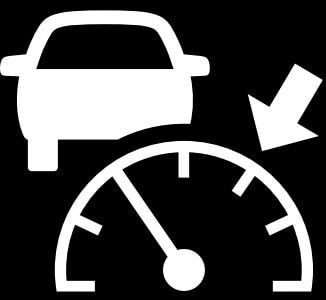

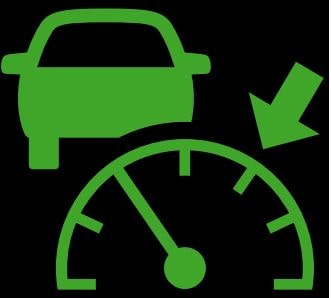
2. To choose a cruise speed, press the Set button while driving at the desired speed. The white Adaptive Cruise Control icon will change to green to tell you that the feature is active.

Setting the gap
- Select a following gap between your vehicle and the vehicle ahead using the Gap Setting button on the steering wheel. The current gap setting will display briefly on the DIC and the Head-Up Display (if your vehicle has one).
- Pressing the Gap Setting button will cycle through the Far, Medium or Near gap settings.
- Remember, you’re picking a following gap. That means the following distance will vary based on how fast you’re driving.
- The more you speed up, the farther back you’ll follow since it would take a greater distance to slow down or come to a stop.
- Select the Gap Setting that best fits your driving style, the current traffic and the weather conditions.

Switching between cruise control modes
On some vehicles, you can switch between Adaptive Cruise Control and cruise control by pressing and holding the cruise control Cruise Control button.
On older vehicles, press and hold the Cancel button to switch between modes.

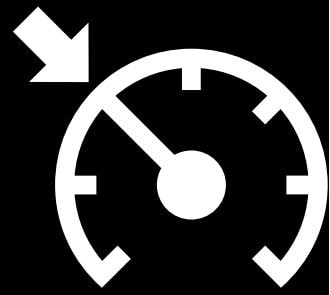
CRUISE CONTROL
or ADAPTIVE CRUISE CONTROL
Adaptive Cruise Control override
If you press the accelerator pedal while the system is in use, automatic braking won’t occur. You’ll get a message in the cluster display, or the green Adaptive Cruise Control icon will turn white or blue, indicating that Adaptive Cruise Control automatic braking is temporarily disabled until you release the accelerator pedal.
You should read your Owner’s Manual to learn more about the limitations of the system.
Canceling Adaptive Cruise Control
If you want to stop using Adaptive Cruise Control or regular cruise control, you can:
- Tap the brake pedal.
- Press the Cancel button.
- Press the cruise control On/Off button.
Intelligent Adaptive Cruise Control
- Your vehicle must have the available Traffic Sign Recognition1 feature to use Intelligent Adaptive Cruise Control (iACC).
- You have to enable this in the Settings menu under “VehicleàSpeed Assist.”
- When Intelligent Adaptive Cruise Control is enabled in Auto mode, Adaptive Cruise Control will automatically update its set speed when your vehicle detects a new speed limit sign.
- iACC has 3 modes: Auto, Ask First and Off.
- In Ask First mode, iACC will ask you to confirm before updating your speed to a newly detected speed limit.
- In the Speed Assist menu, you can set an offset to the detected speed limit in case you want your set Adaptive Cruise Control speed to be higher or lower than the detected speed limit.
- You can set two different offsets to make using iACC smoother. One is for high speeds and one is for low speeds.
- You can also set offsets on older vehicles. On these vehicles, iACC sets an offset by subtracting the current detected speed limit from your current set speed.
- However, the offset won’t go higher than 10 mph above or lower than 10 mph below the detected speed limit.
- This feature may not work properly if the front camera is obscured or dirty. Check your Owner’s Manual for more information on cleaning the camera.
Set an Adaptive Cruise Control speed while stopped
You can set an Adaptive Cruise Control speed even when you’re stopped, as long as you’re in a Forward gear.
1. When your vehicle is stopped, hold the brake pedal and press the Set button.
2. Keep your foot on the brake and press the Resume/+ or Set/- buttons to set the cruise speed you want.
3. Then, lift your foot off the brake. The vehicle won’t move till you press the Resume button or press the accelerator.
4. Then, your vehicle will automatically accelerate to the set speed or following gap time if it detects a vehicle ahead.
Adaptive Cruise Control can follow a vehicle to a stop
On most vehicles, Adaptive Cruise Control can follow a vehicle ahead to a stop. When the vehicle ahead starts moving again, you should check that it’s safe to proceed and then either press the accelerator pedal or Resume/+ button to continue driving. For very brief stops, Adaptive Cruise Control will automatically resume and follow the vehicle ahead.
Adaptive Cruise Control has limited braking capability, so if the vehicle you’re following stops too suddenly, you’ll get an alert to take action by quickly applying the brakes yourself.
If your vehicle has the Driver Attention System on the steering column, Adaptive Cruise Control may automatically resume and follow the vehicle ahead for longer stops, if the system detects that you're paying attention to the road.
Check your Owner’s Manual to learn more about how Adaptive Cruise Control works on your vehicle at low speeds.
Trailering with Adaptive Cruise Control
If equipped, you can also use Adaptive Cruise Control when towing an attached trailer that is electrically connected and within GM-approved allowable size and weight limits.
- When you have your trailer electrically connected to your vehicle and turn on Adaptive Cruise Control, you’ll see an icon in your DIC showing that Adaptive Cruise Control with trailering is on.

a. When towing a trailer, Adaptive Cruise Control will change the way it accelerates and brakes to account for the weight of the trailer.
b. When towing a trailer with Adaptive Cruise Control, it is important to properly set the Trailer Gain. Check your Owner’s Manual for more information on setting Trailer Gain.
c. You should select Tow/Haul mode when driving down steep hills or mountain grades, or when hauling heavy loads.
d. If you turn on Adaptive Cruise Control and do not see the trailering icon in the DIC when you change your gap setting, your vehicle is not equipped to use Adaptive Cruise Control while trailering or your trailer is not electrically connected. Do not use Adaptive Cruise Control while trailering if this is the case.
e. Adaptive Cruise Control should not be used while towing a trailer with an aftermarket trailer brake controller. Aftermarket trailer brake controllers may not function properly with the system.
Safety considerations when using Adaptive Cruise Control
- The system can only brake so much. Your complete attention is always required while driving.
- Adaptive Cruise Control does not steer your vehicle. You must always be in control of vehicle steering.
- The system may not react to parked, stopped or slow-moving vehicles. You should always be ready to take action and apply the brakes.
- Don’t use the system on winding or hilly roads, on freeway exit or entrance ramps, or when trailering (if your vehicle isn’t equipped with Adaptive Cruise Control with trailering). In these driving conditions, the system may not detect the vehicle ahead.
- The system can’t detect traffic lights or traffic signs, so you still need to brake when necessary at intersections and lights.
- Avoid using Adaptive Cruise Control when the rear of the vehicle or truck bed is heavily loaded. See your Vehicle Load Limits and Owner’s Manual for more information.
For your security, please don’t include personal info such as phone number, address or credit card details.
Related links and resources
Q&As
Our support search experience is powered by an AI assistant.
Need more help?
Submit a support request to get answers to your vehicle questions about over-the-air software updates, driving and safety features, Wi-Fi issues and more.
For information specific to your vehicle, please refer to your Owner’s Manual.

 Search